How to Add Alt Text to Images in WordPress
The block editor, the Media Library and the fixes when your alt text refuses to show up.
In WordPress, click the image block, open the block settings panel and type a description in the Alternative text field, then update the post. The same field exists under Media, then Library. Aim for 5 to 15 words that describe the image in its context.
Add alt text in the block editor
Select the image block
In the editor, click the image you want to describe. The block toolbar appears and the right-hand panel switches to that block’s settings.
Open the block settings
If the panel is closed, click the gear icon in the top right corner. The image options sit under the Block tab.
Fill the Alternative text field
Type a short description of what the image shows, in its context. "Red trail running shoe, side view" tells more than "shoe".
Update the post
Save or update. The alt attribute now ships with the page, readable by screen readers and search engines.
How to add alt text from the Media Library
Go to Media, then Library, and click any image to open its details. The Alternative text field sits at the top of the panel and saves automatically as you type.
One catch: WordPress copies the alt into a post at insertion time. Filling the field here covers future insertions, but images already placed in published posts keep whatever they had.
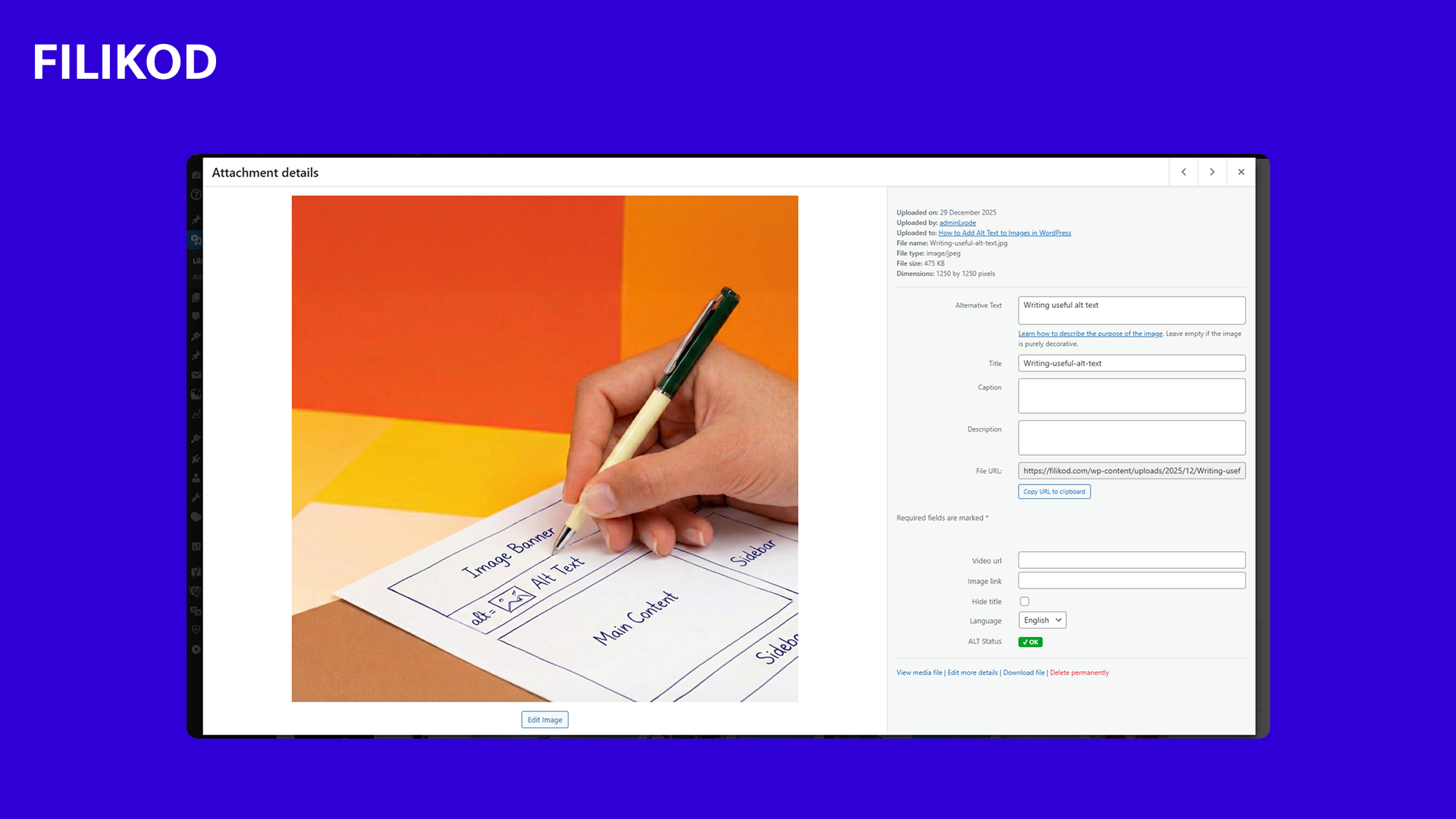
How to write alt text in WordPress
The field is easy to find. What you type in it decides whether the effort pays off.
Describe the context
The same photo deserves a different alt on a product page and in a blog post. Say what the image shows and why it sits on this page.
Aim for 5 to 15 words
That lands between 8 and 125 characters. Below that, the description says too little; beyond, some screen readers cut the text.
Go straight to the subject
Screen readers already announce the element as an image, so skip "image of" and "photo of". Start with the subject itself.
Why alt text doesn't show up in WordPress
Alt filled in but nowhere to be seen? These four situations cover the usual causes.
| What you see | Likely cause | The fix |
|---|---|---|
| Alt filled in the Media Library, missing in the post | The image was inserted before the alt existed; WordPress copies it at insertion time | Open the post, select the image block and fill the field there |
| Alt filled in the editor, absent on the live page | Your page builder uses its own alt field | Fill the alt field inside the builder’s image widget |
| Alt present in the code, still flagged by tools | A lazy-loading script rewrites the img tag | Check the final rendered HTML and the script’s settings |
| No alt field at all | The visual is a CSS background image | Switch to a real img tag when the image carries information |
of audited images have no alt text at all
carry at least one alt text issue
average alt quality score across our audits
Frequently asked questions
No. WordPress copies the alt into the post when you insert the image. To fix a published post, edit the image block there, or see our guide to bulk alt text in WordPress.
Not on its own. Every alt starts empty until someone writes it. Some plugins can suggest or generate descriptions to speed the job up.
The free Filikod plugin audits the media library and lists images by issue: missing, generic, duplicated or too short.
Most builders keep their own alt field inside the image widget, separate from the Media Library. Fill the field in the builder, then check the rendered page.
Another question?
The full FAQ covers the checker, the score, the plugin and how your data is handled.
Hundreds of images to fix?
Filikod audits your entire media library, scores every image and sorts the problems so the worst come first. Free, rated 5/5 on WordPress.org.

Alt text audit and bulk management for WordPress. Quality score, bulk fixing, accessibility. Built in France by Lyode.
★★★★★ 5/5 on WordPress.org
Resources
© 2026 Filikod — WordPress plugin licensed under GPLv2.
EN / FR